How to Whitelist QHHT Emails
In this article, we will show you step by step how to whitelist our email in Gmail and Outlook (Hotmail and Live).
Gmail
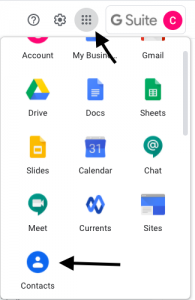
- 1. To do this in Gmail, the first thing you’ll need to is add us to your contacts, which you can find by clicking the nine dots in the far right corner and scrolling down to “Contacts.”
- 2. Then, you’ll click “Create Contact” and fill in the contact form.
- 3. Then, if any of our emails are already in your spam folder, click “not spam.”
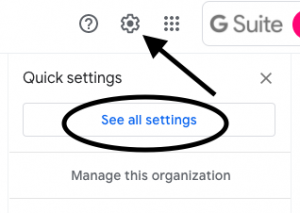
- 4. From there, go to “Settings,” and click “See all settings.”
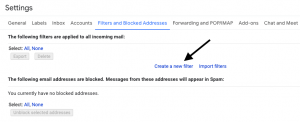
- 5. Then click “Filters and blocked addresses.”

- 6. From there, click “Create a new filter.”
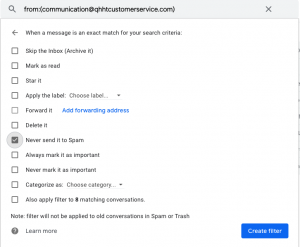
- 7. Add our email address (communication@qhhtcustomerservice.com) in the “From” section and click “Create filter.”
- 8. Then click “Never send to spam” and “Create filter” again. Voila!
Outlook & Hotmail
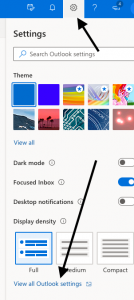
- – For Outlook, click “Settings” then “View all outlook settings.”
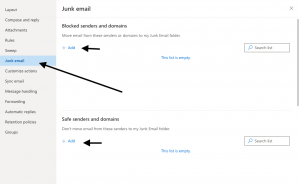
- – Then go to “Junk email.”
- – Add our email address (communication@qhhtcustomerservice.com) to the “Safe senders and domains” and “Safe mailings lists” portions of the page. That’s it!